Send & File outgoing e-mails
File outgoing e-mails directly from Outlook with the ketl add-in.
The ketl add-in lets you file outgoing e-mails in several ways:
- Going to the sent items and selecting the e-mail to file
- Sending with the add-in to file the e-mail at the same time (reply or new e-mail)
This guide focuses on the second case: when you want to systematically (or most of the time) file the e-mails you send.
We will cover 2 situations here:
Send & File
The most efficient way to file an outgoing e-mail is to fill in the filing information at the moment you write it.
If you open the ketl add-in while writing a reply or a new e-mail, you can access the following tab:
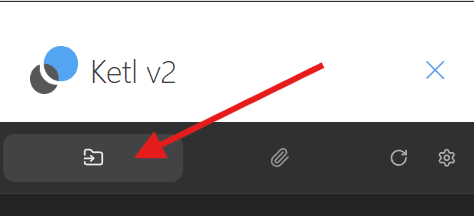
This tab lets you fill in the filing information for the e-mail before sending it.
Once your e-mail is written and the information has been filled in, simply click on “Send & File”:
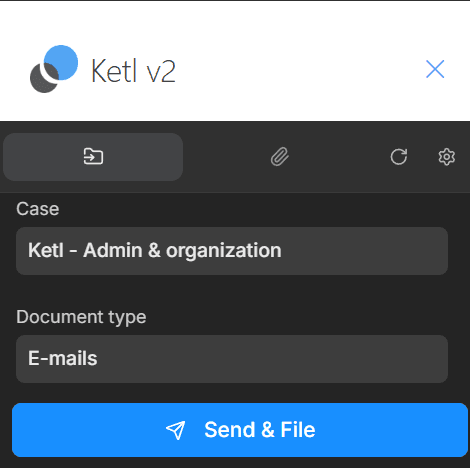
Your e-mail will be filed a few seconds after it is sent.
Filing check before sending
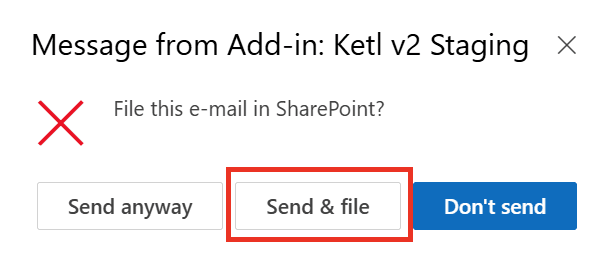
If you want to make sure you never forget to file your outgoing e-mails, you can enable the following notification. It appears whenever you send an e-mail from Outlook:
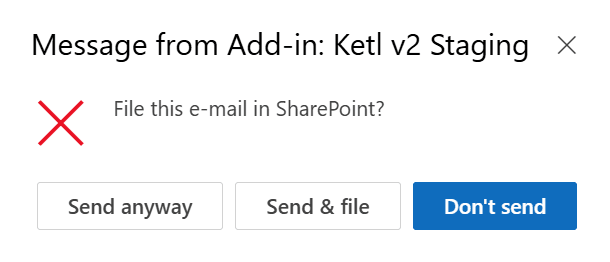
This notification lets you:
- Send anyway — send without filing
- Send & file — open the add-in to file the e-mail before sending
- Don't send — cancel the sending
Open the add-in settings
1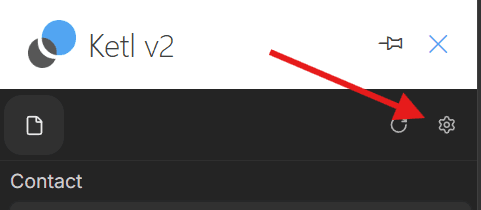
Enable “Notify me to file upon sending”
2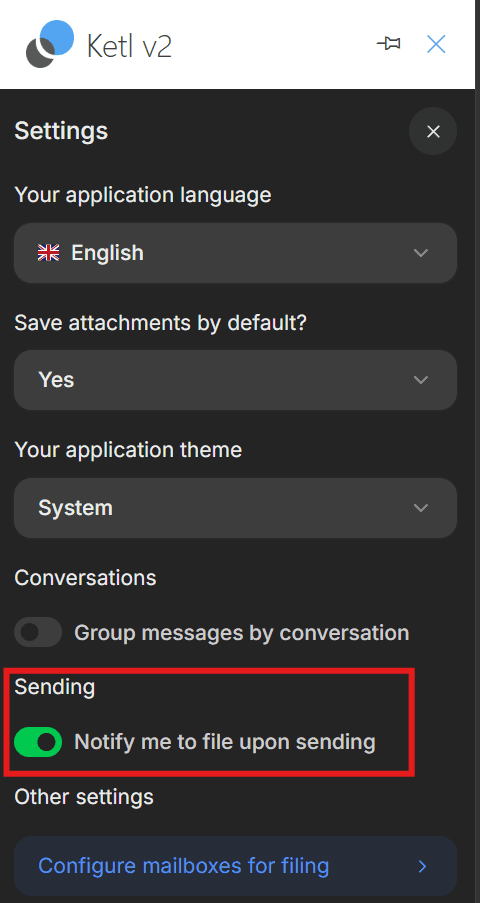
Once enabled, the notification will appear every time you send an e-mail without using the ketl add-in.
When you click on the middle button (“Send & file”), the ketl add-in will open so you can choose the filing details and then send the e-mail: